Label Size Chart and Sheet Template
Find common sheet-label sizes, or enter your label size to see how many fit per sheet and print a template.
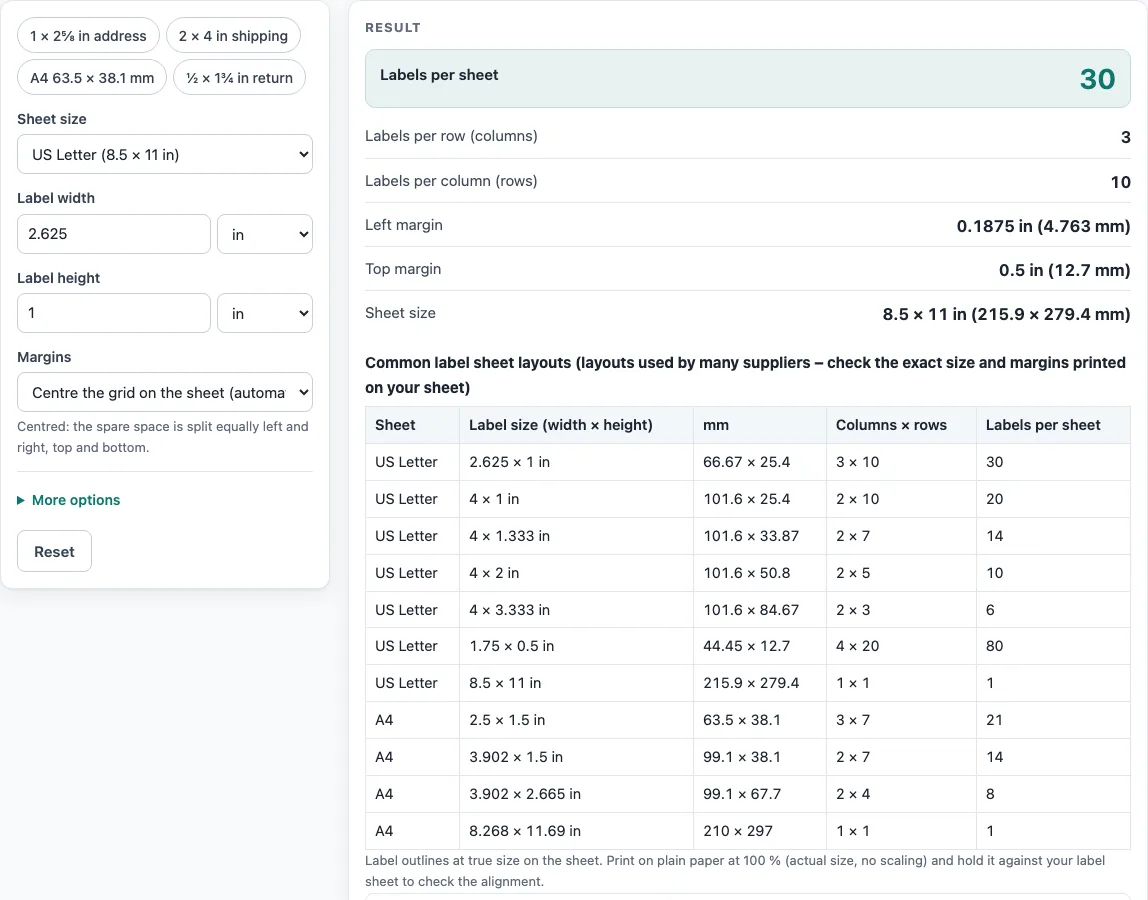
How to use the label size chart
- Choose a Sheet size: US Letter (8.5 × 11 in), A4 (210 × 297 mm) or Custom size. For a custom size, enter the Sheet width and Sheet height, choosing a unit for each.
- Enter the Label width and Label height, choosing inches, millimeters or centimeters for each value.
- Under Margins, keep “Centre the grid on the sheet (automatic)” or select “I know the top and left margins”. If you chose the second option, enter the Top margin and Left margin from your sheet’s instructions.
- Open More options if your sheet has spacing. Enter the Gap between columns and the Gap between rows. Many sheets leave 1/8 in (3 mm); die-cut sheets with no gap use 0.
- Set Keep clear at the sheet edge to the edge space your printer needs. The default is 4.5 mm.
- Read the result: Labels per sheet, Labels per row (columns), Labels per column (rows), Left margin, Top margin and Sheet size. Read any warning before you continue.
- Check the outline template, then use Download SVG (true size), Download DXF (CAD / cutter) or Print / save as PDF.
Click an example button above the form (1 × 2⅝ in address, 2 × 4 in shipping, A4 63.5 × 38.1 mm, or ½ × 1¾ in return) to load values and adjust from there. “Copy link” copies a page address that holds every input. “Reset” restores the default values, and “How it was calculated” shows each step. Print at 100 %, not “fit to page”.
What are common label sizes?
The chart lists these common layouts, and the count on a sheet depends on the margins and gaps as well as the label size. Label sizes are written width first, then height.
- US Letter: 30 labels of 1 × 2⅝ in, 20 of 1 × 4 in, 14 of 1⅓ × 4 in, 10 of 2 × 4 in, 6 of 3⅓ × 4 in and 80 of ½ × 1¾ in.
- A4: 21 labels of 63.5 × 38.1 mm, 14 of 99.1 × 38.1 mm and 8 of 99.1 × 67.7 mm.
These are layouts used by many suppliers, not a standard. Sheets differ by maker, so check the exact label size and margins printed on your sheet. The chart does not list brand names or product numbers. For a specific product, enter the size from its package into the calculator.
How many labels fit on a sheet?
Labels per sheet equals labels across multiplied by labels down. Each count is how many label widths, plus the gaps between them, fit inside the page after the margins are removed. A row of n labels needs n × width + (n − 1) × gap.
Take the default US Letter example: the sheet is 8.5 in wide and each label is 2.625 in wide with a 0.125 in gap. Three labels take 3 × 2.625 + 2 × 0.125 = 8.125 in, which fits. Four would need 10.875 in, so three fit across. Down the page, ten labels of 1 in with no gap take 10 in out of 11 in, so ten fit down. Three across times ten down gives 30 labels per sheet, with a 0.5 in top margin.
What does the keep-clear margin do?
The keep-clear margin reserves edge space that many printers cannot print into. In the centered layout, the grid must fit inside the sheet minus this space on every side. In the manual layout, no label is placed closer than this to the right and bottom edge. In the default example the spare width is 0.375 in, split into a 0.1875 in left margin and 0.1875 in on the right. If the left or top margin is smaller than the keep-clear margin, the tool shows a warning, because part of the first label may not print.
Sources
- Avery template 5167 and the matching Letter layouts 5160, 5161, 5162, 5163, 5164 (2⅝ × 1, 4 × 1, 4 × 1⅓, 4 × 2, 4 × 3⅓ in)
- AALabels, Avery-sized labels — A4 63.5 × 38.1 mm (21), 99.1 × 38.1 mm (14), 99.1 × 67.7 mm (8)
- Paper sizes: A4 210 × 297 mm and A3 297 × 420 mm (ISO 216), US Letter 8.5 × 11 in and Tabloid 11 × 17 in (ANSI/ASME Y14.1)
- 1 in = 25.4 mm exactly (NIST SP 811)
Worked examples
| Input | Result |
|---|---|
| US Letter, 2.625 × 1 in | 30 labels per sheet (3 × 10) |
| US Letter, 4 × 2 in | 10 labels per sheet (2 × 5) |
| A4, 63.5 × 38.1 mm | 21 labels per sheet (3 × 7) |
| US Letter, 1.75 × 0.5 in | 80 labels per sheet (4 × 20) |
Calculated by the tool above with these values.
Frequently asked questions
Is the calculator free, and is anything I type uploaded?
Yes, the tool is free and needs no sign-up. It runs entirely in your browser, and nothing you type is uploaded.
Can I use the results in commercial work?
Yes. Templates and results may be used in commercial work, and no attribution is needed. Check any terms your client sets.
Why does the tool show a warning about the margin?
The warning appears when the left or top margin is smaller than the keep-clear margin. Many printers cannot print into the outer few millimeters of a page, so part of the first label may be cut off. Enter a larger top and left margin under “I know the top and left margins”, or check your printer’s unprintable area.
Should I print at 100 % or fit to page?
Print at 100 %. Use “Print / save as PDF” and turn off “fit to page”, because scaling changes the label sizes and the labels will no longer match the measurements. Test on plain paper and hold it against your label sheet.
Why does the tool say no label fits?
The label, the gaps and the keep-clear margin together are larger than the sheet. Check the label size, the gaps and the units.
Why does the tool warn about many labels on one sheet?
It shows this when more than 200 labels fit. This usually means the units are wrong, such as millimeters entered as inches.
Related tools
- Fragile labels: use it to print fragile and handling labels.
- Envelope size chart: Use it when you need to check envelope dimensions before printing addresses on them.
- Poly mailer sizes chart: Use it to compare common mailer bag sizes when you are choosing a shipping label size.
- Mailer box sizes chart: Use it to find common mailer box sizes that a shipping label has to fit on.
- Box template generator: Use it to build a folding box template once your labels and packaging are sized.
- All calculators: Use it to browse every calculator on the site.